Installation & setup
Meta POS is a Laravel 13 application (PHP 8.3+). This page covers local development (XAMPP / php artisan serve), cloud & shared hosting, how the web server must point at public/index.php, how to configure .env, and exactly what the built-in install wizard does.
Installation is a one-time setup. If the POS is already installed, skip to Getting started. License / purchase codes are managed later under Settings → Updates — not inside the install wizard.
Before you start
PHP 8.3+ host
Local stack (XAMPP / Laragon / Herd) or cloud hosting with PHP 8.3 or newer — required by Laravel 13.
A database
An empty MySQL / MariaDB database (typical for production), or SQLite for quick local trials.
App package
The Meta POS project files. For source installs you also need Composer and Node.js to build assets.
Server requirements
The wizard’s first screen checks PHP version, required extensions, and writable folders. Summary:
| Requirement | Needed | Notes |
|---|---|---|
| PHP | 8.3 or newer | Laravel 13 / Meta POS require PHP 8.3+. Set this in cPanel, Plesk, or your local stack. |
| Database | MySQL 8+ / MariaDB 10.3+ or SQLite | Production: MySQL. Local quickstart: SQLite file under database/. |
| PHP extensions | PDO, Mbstring, OpenSSL, Tokenizer, XML, Ctype, JSON, Fileinfo | Also enable pdo_mysql (or pdo_sqlite), curl, gd, zip, and intl when available. |
| Writable folders | Yes | storage/ (including app, framework, logs) and bootstrap/cache/. |
| Web root | public/ | Only the public folder should be web-accessible. See Document root & index.php. |
| Composer / Node | Local & VPS builds | Not needed on shared hosts if you upload a pre-built package with vendor/ and compiled public/build assets. |
Choose an install path
Local development
XAMPP, Laragon, Herd, or php artisan serve — Composer + Node, then the wizard or artisan setup.
Cloud / shared hosting
cPanel, Plesk, VPS, or managed Laravel hosts — upload files, point the domain at public/, run the wizard.
Local installation
Use this when developing on your PC or testing before going live.
1. Install tools
- PHP 8.3+ with the extensions above (XAMPP Lite / full XAMPP, Laragon, Laravel Herd, or a system PHP).
- Composer (PHP dependency manager).
- Node.js 20+ and npm (to compile Vite front-end assets).
- MySQL (or use SQLite and skip creating a database).
2. Get the project & install dependencies
From the project root (the folder that contains artisan, composer.json, and public/):
composer install
copy .env.example .env          # Windows
# cp .env.example .env          # macOS / Linux
php artisan key:generate
npm install
npm run build
Or run the bundled Composer setup script (installs deps, copies .env, generates the key, migrates, and builds assets):
composer run setupcomposer run setup runs migrations immediately. If you prefer the web wizard instead, skip that script — use composer install, copy .env, generate the key, build assets, leave APP_INSTALLED=false, then open the site and complete the wizard.
3. Prepare the database
MySQL (recommended, matches production): create an empty database (e.g. meta_pos) in phpMyAdmin or the MySQL CLI, then set these in .env:
DB_CONNECTION=mysql
DB_HOST=127.0.0.1
DB_PORT=3306
DB_DATABASE=meta_pos
DB_USERNAME=root
DB_PASSWORD=
SQLite (fastest local trial):
DB_CONNECTION=sqlite
DB_DATABASE=database/database.sqlite
Create the empty file if needed: database/database.sqlite (or let the wizard create it when you choose SQLite).
4. Serve the app
Option A — Laravel’s built-in server (simplest):
php artisan serveOpen http://127.0.0.1:8000. Set APP_URL=http://127.0.0.1:8000 in .env.
Option B — XAMPP / Apache virtual host (production-like):
-
Point DocumentRoot at
public/Example: if the project lives at
C:\xampp\www\meta-pos, the vhost DocumentRoot must beC:\xampp\www\meta-pos\public— not the project root. See Document root & index.php. -
Set
APP_URLto the exact base URLe.g.
http://meta-pos.testorhttp://localhost/meta-pos/publicif you access the app via a subdirectory URL. -
Open the site
If
APP_INSTALLEDis false and no admin user exists, you are redirected to/install.
For day-to-day coding, composer run dev starts the HTTP server, queue listener, logs, and Vite together. For a one-time install test, php artisan serve plus a built asset bundle is enough.
Document root & public/index.php
Laravel’s front controller is public/index.php. That file boots Composer’s autoloader, loads bootstrap/app.php, and handles every HTTP request. The matching public/.htaccess rewrites pretty URLs to index.php.
Correct layout:
meta-pos/                 ← project root (not web-public)
├── app/
├── bootstrap/
├── config/
├── database/
├── public/               ← ONLY this folder is the website root
│   ├── index.php         ← front controller
│   ├── .htaccess
│   ├── build/            ← Vite compiled assets
│   └── documentation/
├── resources/
├── routes/
├── storage/
├── vendor/
├── .env
└── artisan
Preferred: point the domain at public/
- Apache / cPanel: set Document Root to
.../meta-pos/public(or use “Domains → Document Root”). - Nginx: set
rootto thepublicpath and pass PHP toindex.php. - VPS / Forge / Ploi: web directory =
public.
Never expose .env, vendor/, or storage/logs as public URLs.
Fallback: host forces DocumentRoot = project root
If you cannot change DocumentRoot (some shared hosts only allow public_html), either:
-
Deploy so
public/contents live inpublic_htmlMove/copy the contents of
public/intopublic_html, keep the rest of Laravel one level above (or beside) it, and editindex.phppaths so__DIR__.'/../…'still points atvendorandbootstrap. -
Or add a root redirect into
public/Place this
index.phpin the folder your host treats as the site root (only if DocumentRoot cannot be changed):<?php /** * Temporary bridge when DocumentRoot cannot be set to /public. * Prefer fixing DocumentRoot instead of using this long-term. */ require __DIR__.'/public/index.php';Also ensure requests for assets under
/build,/documentation, etc. resolve underpublic/(rewrite rules or an.htaccessthat routes intopublic). Fixing DocumentRoot is safer and simpler.
Do not move only index.php without adjusting the ../vendor and ../bootstrap paths. A blank page or “autoload failed” almost always means the web root is wrong or those relative paths are broken.
Working with .env
The .env file at the project root is the live configuration. Start from .env.example. Never commit real secrets to git.
Core application keys
| Key | Purpose |
|---|---|
APP_NAME | Display name (default Meta POS). |
APP_ENV | local while developing; production on live servers. |
APP_KEY | Encryption key. Generate with php artisan key:generate. Required before the app can run safely. |
APP_DEBUG | true locally; must be false in production. |
APP_URL | Exact public base URL (scheme + host + path). Used for links, assets, and redirects. |
APP_INSTALLED | false until setup finishes. The wizard sets this to true when install completes. |
APP_LOCALE | Default UI language (e.g. en). |
Database keys
Written by the wizard’s database step (or set manually before install):
DB_CONNECTION=mysql   # or sqlite
DB_HOST=127.0.0.1
DB_PORT=3306
DB_DATABASE=meta_pos
DB_USERNAME=root
DB_PASSWORD=secret
For SQLite, DB_DATABASE is a file path (relative paths like database/database.sqlite are resolved from the project).
Sessions, files, queue, mail
| Key | Typical value | Notes |
|---|---|---|
SESSION_DRIVER | file | Works on shared hosting without Redis. |
FILESYSTEM_DISK | local | Local disk for uploads. |
STORAGE_PUBLIC_MODE | link or directory | link = public/storage symlink. If the host blocks symlinks, the installer falls back to directory (files under public/storage). |
QUEUE_CONNECTION | sync | Fine for most installs. Use database/redis + a worker on larger sites. |
CACHE_STORE | file | No Redis required. |
MAIL_* | SMTP settings | Needed for scheduled reports and password emails. Locally, MAIL_MAILER=log writes to the log. |
Practical .env tips
- After changing
.envon a cached production server, runphp artisan config:clear(or rebuild config cache). - Values with spaces or
#must be quoted:APP_NAME="Meta POS". - Payment gateway, SMS, and FCM keys in
.env.exampleare optional — configure them when you enable those features. - The installer updates DB_* and
APP_INSTALLEDvia its EnvWriter; you can still edit.envby hand afterward.
Cloud & shared hosting
-
Create an empty MySQL database
In cPanel / Plesk / your provider panel, create a database and user, grant full rights, and note host, name, username, and password.
-
Upload the application
Upload the full project (including
vendor/and built front-end assets if you are not running Composer/npm on the server). Keep the Laravel folder structure intact. -
Point the domain at
public/Set Document Root to the
publicdirectory. Confirmpublic/index.phpandpublic/.htaccessare present. See Document root & index.php. -
Create
.envand set permissionsCopy
.env.example→.envon the server (or upload a prepared file). SetAPP_URLto your HTTPS domain,APP_ENV=production,APP_DEBUG=false,APP_INSTALLED=false. GenerateAPP_KEYwithphp artisan key:generateover SSH, or ship a key already generated on your machine. Makestorage/andbootstrap/cache/writable by the web user (typically775/ owner web user). -
Open the site → run the wizard
Visit your domain. You should land on
/install. Complete the steps in Installation wizard. -
Add the scheduler cron (recommended)
Scheduled reports, automated backups, stock archives, and update checks need Laravel’s scheduler. Add one cron entry:
* * * * * cd /path/to/meta-pos && php artisan schedule:run >> /dev/null 2>&1Replace
/path/to/meta-poswith the real project root (the folder that containsartisan). -
Use HTTPS
Enable SSL (Let’s Encrypt or your host’s certificate). Keep
APP_URLonhttps://….
Default drivers use the filesystem (file sessions/cache, sync queue). No Redis, Supervisor, or Node process is required on the live server once assets are built. Symlink creation is attempted for public/storage; if blocked, Meta POS falls back to a normal public/storage directory.
Installation wizard
When the app is not installed, middleware redirects visitors to /install. The wizard has five steps:
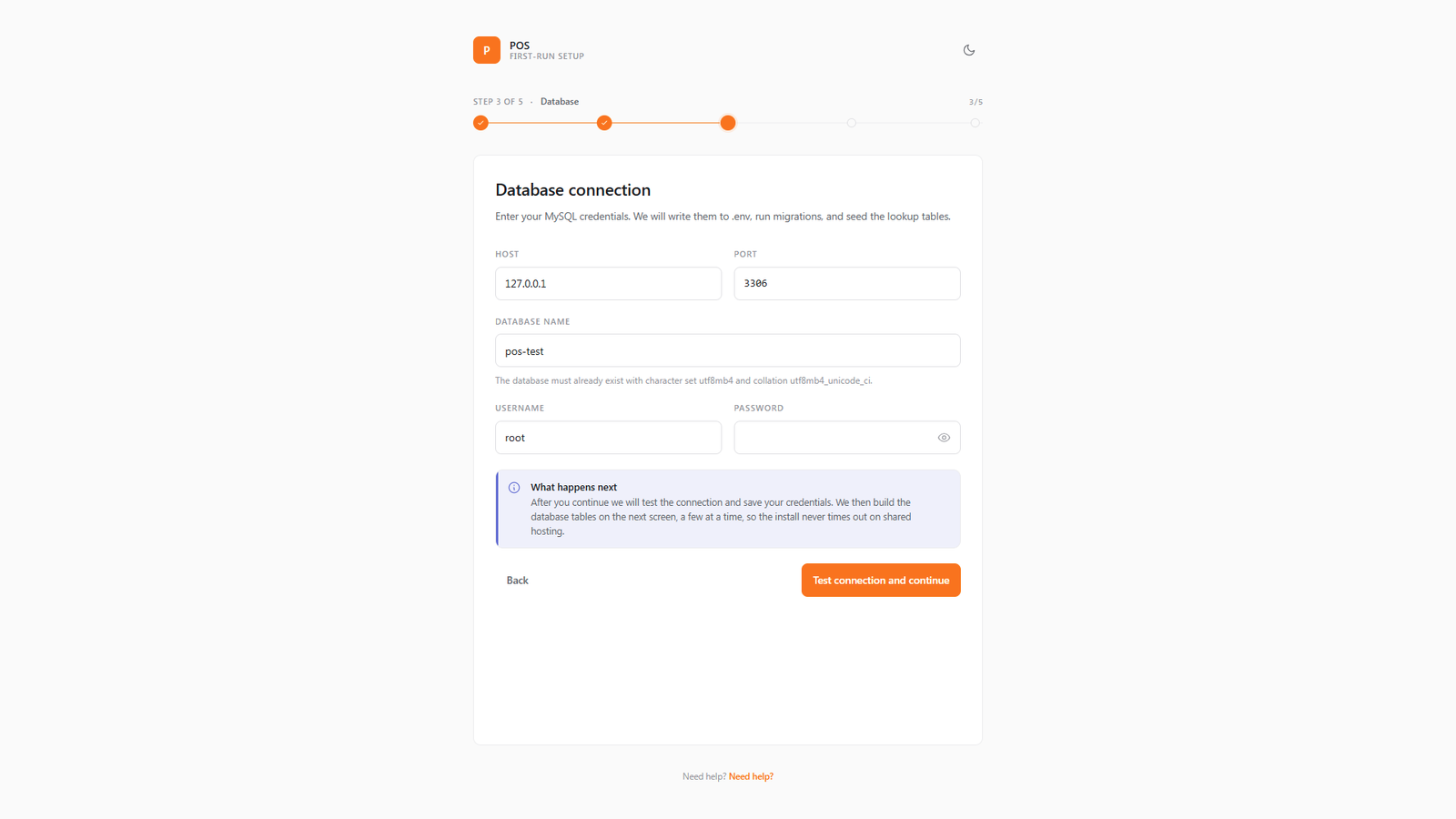
-
Requirements
Checks PHP 8.3+, required extensions, and writable
storage/bootstrap/cachepaths. Fix any failures, refresh, then continue. -
Database
Choose MySQL / MariaDB or SQLite. For MySQL enter host, port, database name, username, and password. The wizard tests the connection, writes the DB settings into
.env, and leavesAPP_INSTALLED=falseuntil the end. -
Admin & first store
Enter the first store name, admin name, email, and password (min. 8 characters, confirmed). These credentials are your initial Admin login.
-
Industry & demo data
Pick Retail, Pharmacy, or Supermarket. Optionally load demo products, customers, and sample stock. Clicking install runs migrations and seeders.
-
Done
You are signed in and can open the Admin dashboard or the POS cashier screen immediately.
What the wizard does under the hood
- Runs
php artisan migrate --forceto create all tables. - Seeds permissions, roles, accounting chart, and languages.
- Creates the first store (code
MAIN), a terminal (“Front Counter”), company/receipt defaults, and your Admin user. - Applies the industry preset (pharmacy batches, supermarket scales, etc.).
- Optionally seeds demo catalog and sample transactions.
- Ensures public file storage (
storage:linkor directory fallback) and setsSTORAGE_PUBLIC_MODE. - Marks the install complete: sets
APP_INSTALLED=truein.envand writesstorage/app/.installed.
Industry presets
| Industry | What you get |
|---|---|
| Retail | General merchandise defaults — barcodes, variants, everyday shop settings. |
| Pharmacy | Batch & expiry focus, drug schedules, prescription-oriented defaults. |
| Supermarket | Weighed items, scale / PLU barcode defaults, high-volume catalog habits. |
After installing
Getting started
First-day checklist: store, products, staff, test sale.
Settings
Currency, receipts, email (SMTP), branding.
License & updates
Enter your purchase code under Settings → Updates when ready.
- Confirm cron is running if you use scheduled reports or automatic backups.
- Turn on backups from Backup & restore.
- On production, keep
APP_DEBUG=falseand use HTTPS.
Tips & best practices
- Use a fresh, empty database. Installing into a DB that already has tables can conflict with migrations.
- Match PHP to 8.3+ before opening
/install. Older PHP versions fail the first wizard step. - Keep
APP_URLexact. Wrong scheme or path breaks cookies, asset URLs, and redirects. - Build assets before upload if the server has no Node: run
npm run buildlocally, then uploadpublic/build. - One install = one company. Multiple shops are stores inside the same install.
Notes & reinstall
The installer locks itself after setup. Completion sets APP_INSTALLED=true and creates storage/app/.installed. Visiting /install again redirects away once installed.
Reinstall only on a disposable environment. You would need a fresh empty database, set APP_INSTALLED=false, remove storage/app/.installed, and clear related config cache — never do this on a live shop with real data.
Stuck? Common causes: wrong DocumentRoot, missing APP_KEY, DB credentials, or unwritable storage. See Troubleshooting.
Next: Getting started · Related: Settings · Updates & license · Backup & restore